
If you want your website to rank well in Google and other search engines, SEO (Search Engine Optimization) is essential. For WordPress users, the most popular SEO plugin is Yoast SEO.
In this guide, we’ll explain you a step-by-step guide with screenshots to Install, Setup, Configure, and Optimize your WordPress website with Yoast SEO Plugin in 2026.
To get high traffic from search engines, proper SEO is a most important, and to do WordPress site SEO properly you need a best SEO plugin.
There are many SEO plugins like Rank Math SEO, All in One SEO, but Yoast SEO plugin is #1 with 10+ million active installations, means mostly bloggers are using this plugin.
In my case, I also use this plugin on all my websites. That’s why, I am sharing this tutorial that will help you set up the Yoast plugin and optimize your WordPress blog.
What is the Yoast SEO plugin?
Yoast SEO is a tool that helps optimize your website’s content, keywords, meta tags, sitemaps, and readability. This helps your site perform better in search engine results.
Let’s get started without any delay and learn how to setup Yoast SEO plugin.
There are two ways to install Yoast plugin: automatically or manually. First, we’ll explain the automatic installation method. Follow the steps below.
If you are a beginner and haven’t created your blog yet or haven’t set it up properly, first learn how to create a website correctly.
- How to Install Yoast SEO for WordPress via Automatic Installer?
- How to Install Yoast SEO Plugin for WordPress Manually in 5 Minutes
- How to Setup Yoast SEO Plugin Manually for WordPress Website in 2026?
- Final Words,
How to Install Yoast SEO for WordPress via Automatic Installer?
You can automatically install the Yoast WordPress plugin on your WordPress website. Follow the steps below to get started.
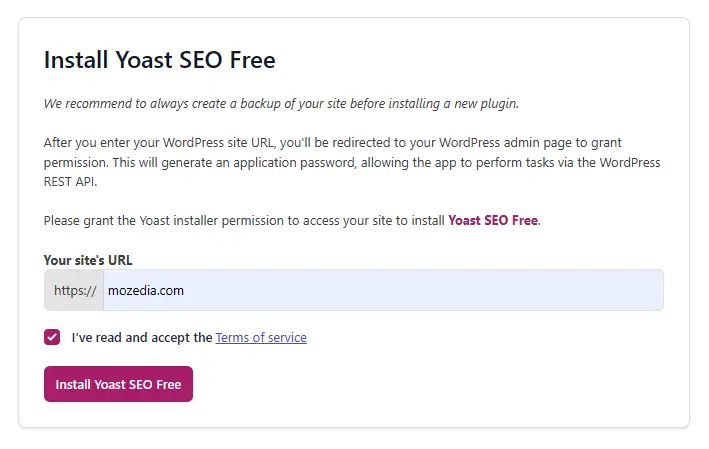
Step 1: Go to the Yoast SEO automatic installer
- Enter your website URL,
- then check the box to accept the Terms of Service.
- Now click on Install Yoast SEO Free button.
Step: Authorize the Yoast Application
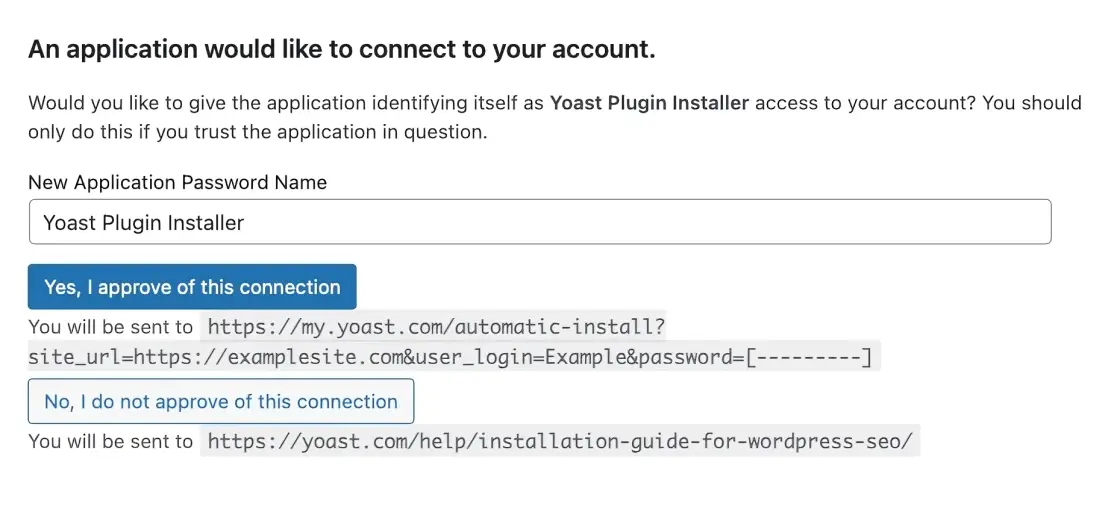
In this step, you need to authorize the Yoast SEO installer to access your WordPress website.
- Click on “Yes, I approve of this connection” to grant permission
- This allows Yoast SEO to automatically install and activate the plugin
Step 3: Complete the Installation
Now you need to follow a few simple but essential steps.
- click on the “Start improving Yoast SEO”
- and folloe some required steps.
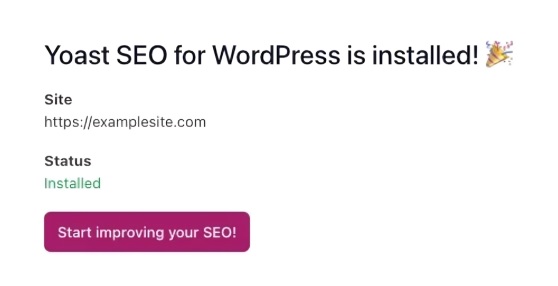
This process may take a few moments to complete. If the automatic installation doesn’t work, you can install Yoast SEO manually instead.
How to Install Yoast SEO Plugin for WordPress Manually in 5 Minutes
To install the Yoast SEO for WordPress plugin on your WordPress site, you can either manually upload the yoast seo .zip file or follow the steps below.
First open your WordPress Dashboard, follow these steps to install yoast plugin:
- Log in to your WordPress Dashboard
- Navigate to Plugins > Add New
- In the search bar, type “Yoast SEO“
- Find Yoast SEO by Team Yoast
- Click Install Now and wait for the installation to complete.
- Click Activate to enable the plugin on your website.
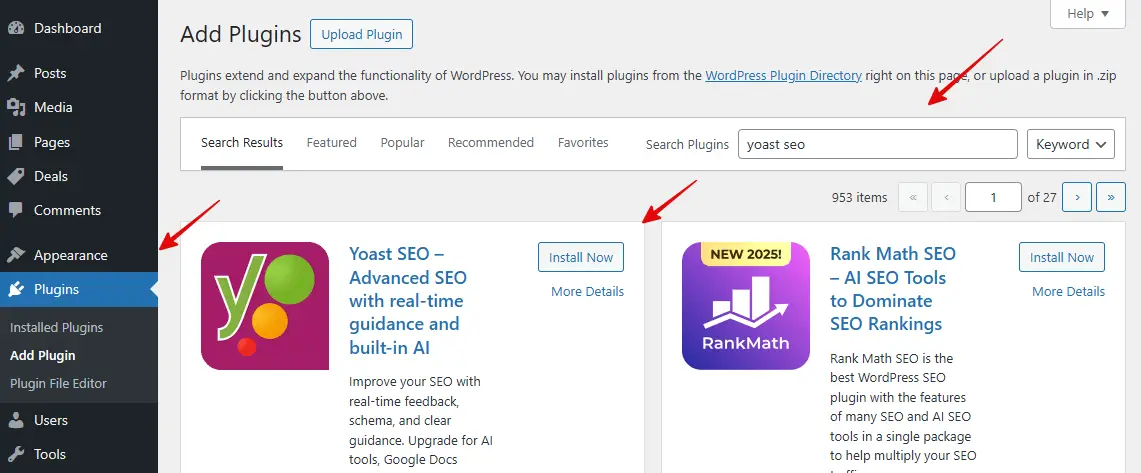
If another SEO plugin (like Rank Math or SEOPress) is active, deactivate it before installing Yoast to avoid SEO conflicts and make sure your site uses best WordPress hosting for performance.
How to Setup Yoast SEO Plugin Manually for WordPress Website in 2026?
Now that the plugin is activated, it’s time to configure the settings to optimize your website for search engines. Yoast SEO provides a setup wizard that makes this process easy.
Here is the detailed guide, follow step by step process.
1. Yoast SEO: General Settings
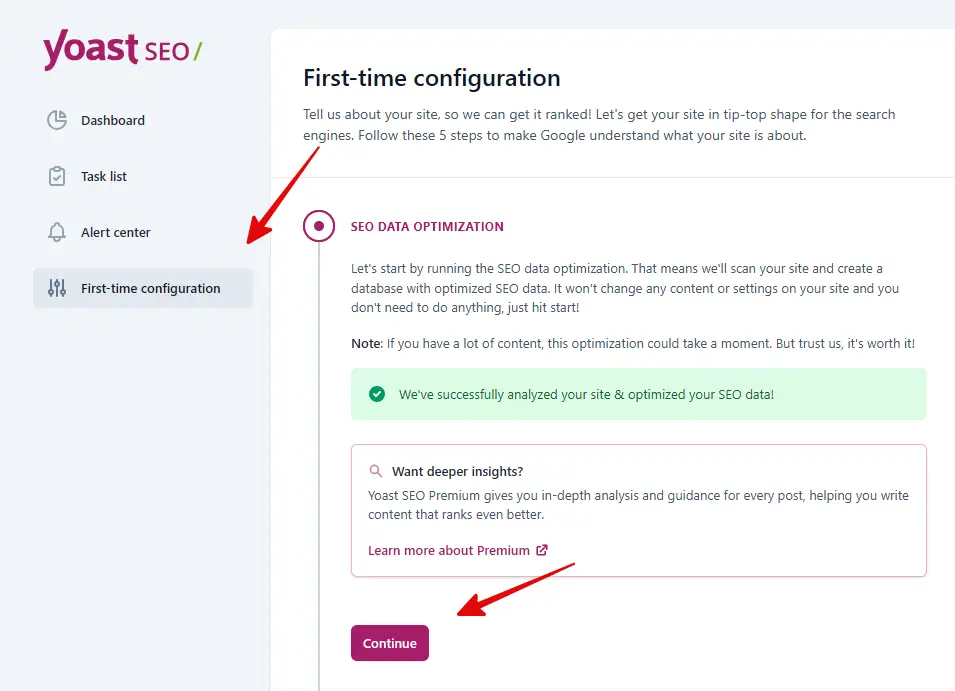
In Yoast’s general settings, you’ll find four options: Dashboard, Task List, Alert Center, and First-Time Configuration. Forfirst-time configuration.
1) First-time Configuration
You need to click on First-time Congfiguration and Start SEO Data Optimization. I’ve already done this, so the SEO optimization isn’t showing, but it will for you.
2) Site Representation
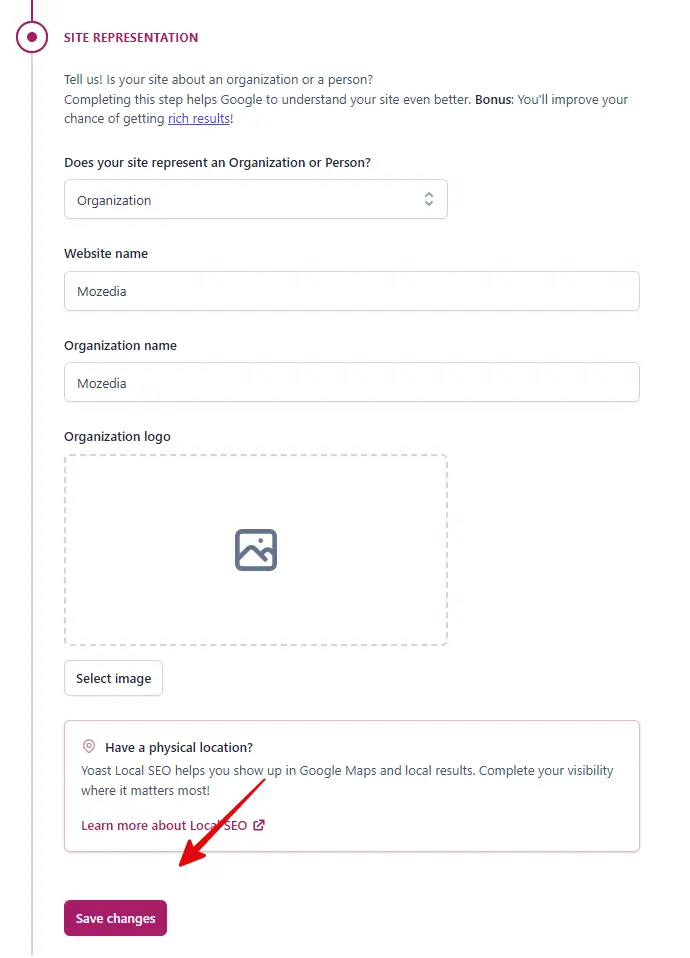
The Site Representation settings help Yoast SEO understand whether your website belongs to an individual or an organization.
Providing accurate information gives Google clear signals about your site, leading to improved rich results, brand visibility, and SEO performance.
Therefore, it’s crucial to fill in the correct website name, organization/person details, and logo.
- Select either Organization (company/brand) or Person (personal blog) depending on your website.
- Enter your website name, for example: Mozedia.
- If you selected Organization, enter the company name; if you selected Person, enter your name.
- Click on “Select image” to upload your website or brand logo (a square logo works best).
- After filling in all the information, click on the “Save changes” button at the bottom.
3) Social Media Profiles
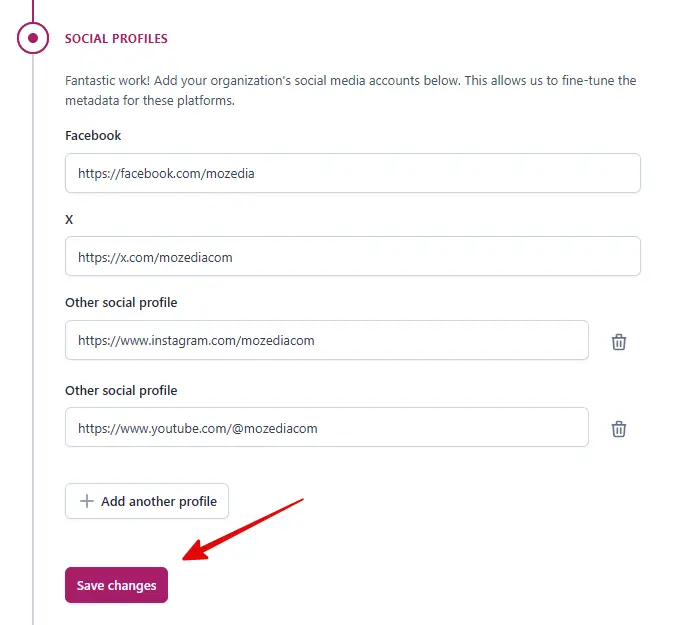
Adding all your website’s or brand’s official social media accounts in the Social Profiles settings helps Yoast plugin generate the correct social metadata.
This allows Google and other search engines to understand that all these profiles are associated with your website, improving brand trust and social visibility.
Therefore, you should only add your genuine and active social media profiles here. If you selected “Organization” above, add the company’s social profile links; otherwise, add your own.
- Enter the full URL of your Facebook page
- Enter the URL of your X (Twitter) profile
- Add your other social profiles links, such as Instagram, YouTube, and LinkedIn.
- After adding all the profile links, click on “Save changes” below.
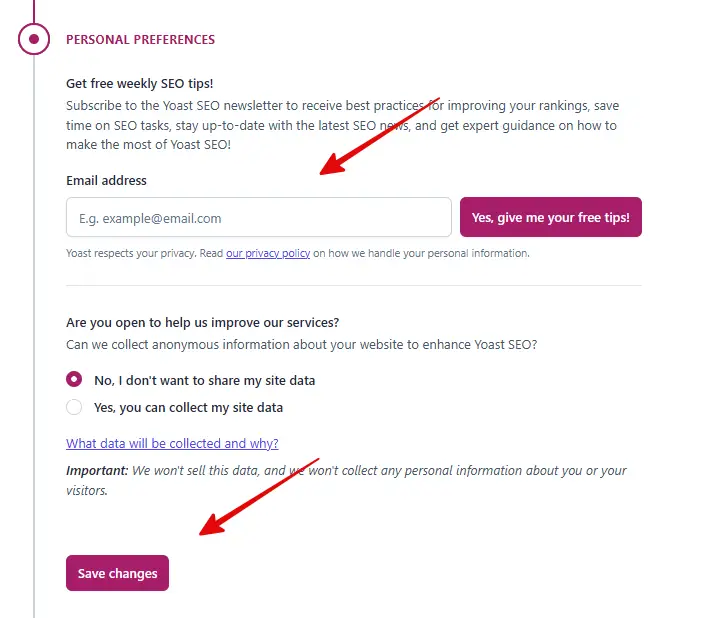
4) Personal Reference
In the Personal Preferences section, you decide whether you want to receive email updates from Yoast SEO and whether you want to share anonymous usage data from your site.
Both of these options are optional and don’t negatively affect your SEO settings, simply choose the options that suit your privacy preferences and click Save changes.
5) Finish Configuration
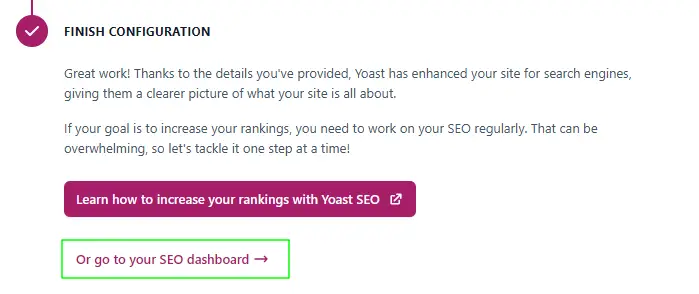
You will now see a screen indicating that the initial setup of Yoast SEO has been successfully completed.
Yoast has now gathered the necessary information about your website, which helps it communicate your site’s content to search engines more effectively.
2. Yoast SEO: Site Connections Settings
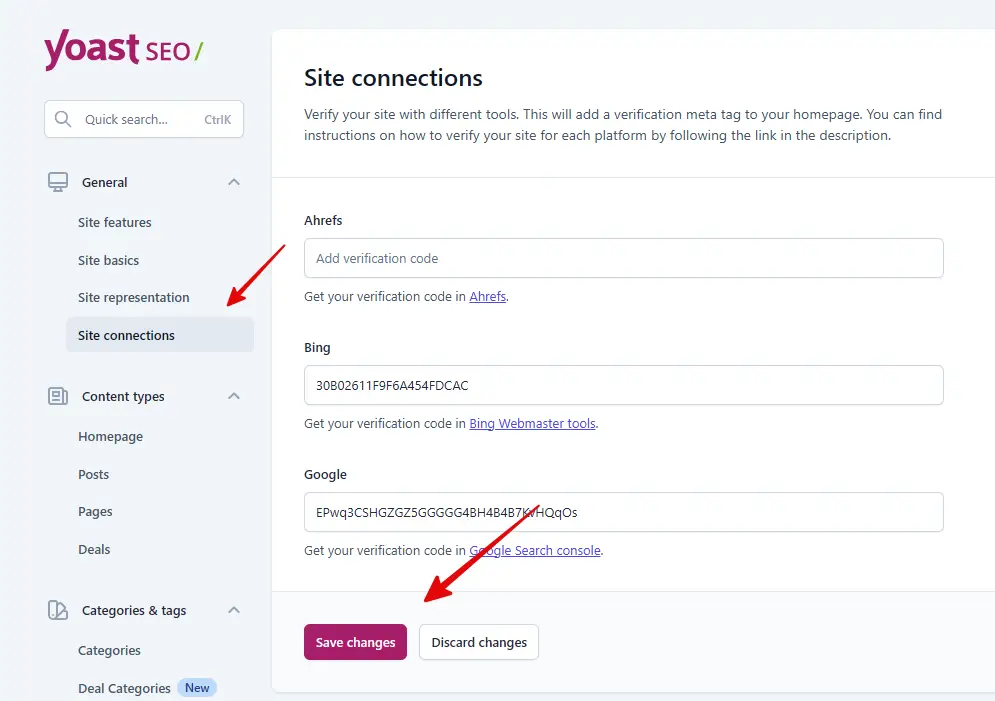
Now it’s time to connect your site to search engines like Google and Bing. The Site Connections section is used to verify your website with various SEO and webmaster tools.
The verification codes you add here are automatically added by Yoast SEO as meta tags to your website’s html, making site verification on different platforms easier.
For better SEO and search visibility, you need to submit your website to Google.
3. Yoast SEO: Site Features Settings
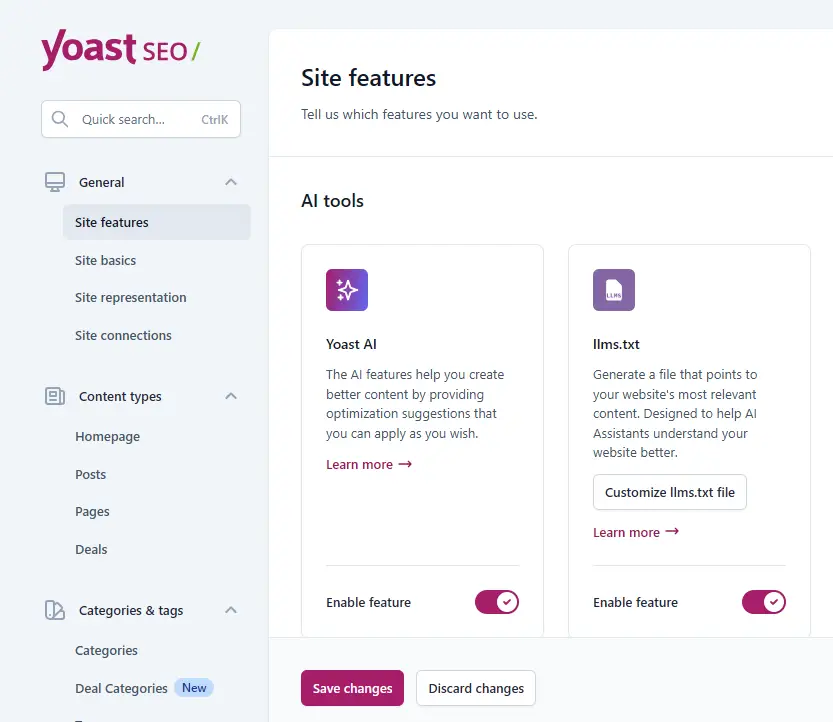
The Site Features section gives you control over Yoast’s advanced and new features; here you can enable the features you need according to your requirements.
1. AI Tools
The Yoast SEO plugin in the Tools section currently offers only two features: one for Yoast AI and the other is llms.txt to help AI assistants.
Yoast AI assists with content optimization, while the llms.txt feature makes your website more easily understandable for AI systems.
By turning these features on or off as needed, you can further strengthen your SEO strategy.
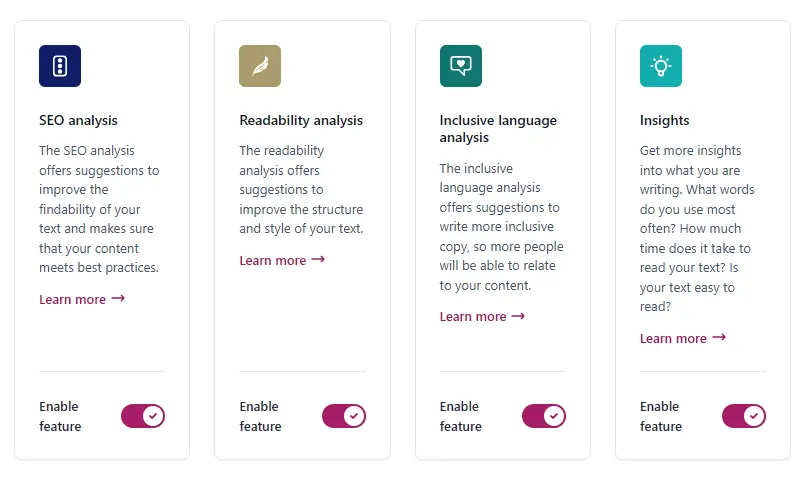
2) Writing Features
Yoast SEO’s Writing Features help make your content SEO-friendly and easy to read.
- SEO Analysis optimizes your content for search engines,
- Readability Analysis improves content clarity,
- Inclusive Language Analysis suggests more inclusive and respectful language,
- and Insights analyzes your writing to help you improve its quality.
3) Site structure
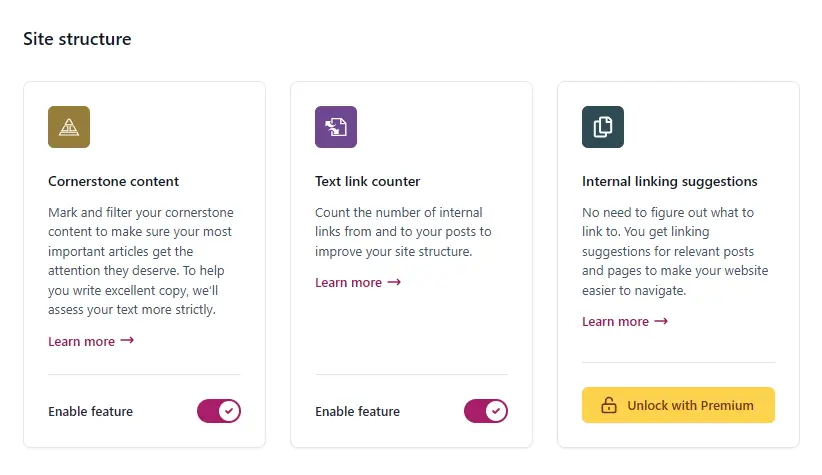
The Cornerstone Content feature allows you to mark the most important articles on your website.
This enables Yoast to analyze these posts with stricter SEO and readability checks, ensuring your main content performs better for both search engines and users.
The Text Link Counter counts the internal links within your posts and shows you how many inbound and outbound links each post has.
This helps you improve your internal linking and strengthen your website’s overall structure.
Internal Linking Suggestions is a Premium feature that provides suggestions for linking relevant posts and pages together.
4) Social Sharing
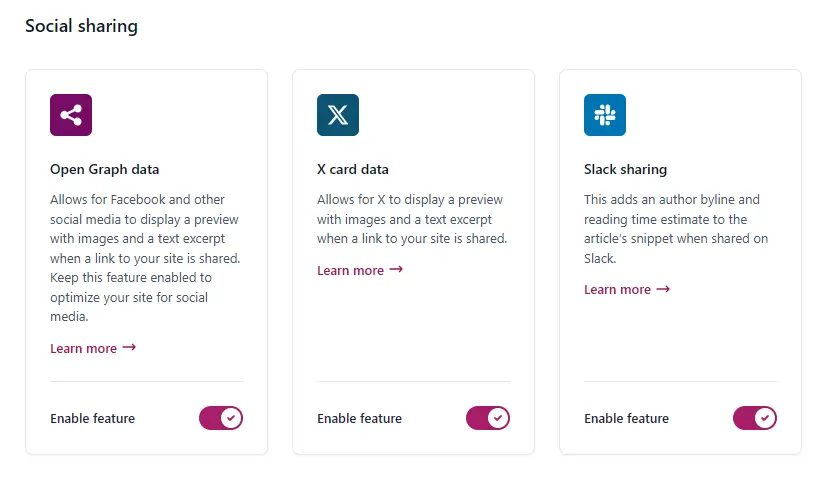
The Open Graph data feature helps display the correct preview (image, title, description) for Facebook and other social media platforms
when your website link is shared. Keeping this enabled is essential for social media optimization.
The X card data feature allows you to display rich preview cards when your post is shared on X (Twitter), making the post more attractive and improving the click-through rate.
The Slack sharing feature adds information such as the author name and estimated reading time when sharing links on Slack,
making the article appear more professional and informative. It is recommended to keep all these features enabled for better social visibility.
5) SEO Tools
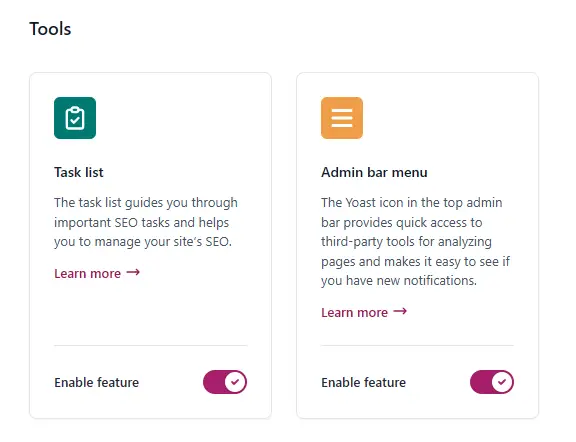
The Task List feature helps you complete essential SEO tasks step-by-step. This is especially useful for beginners,
as it guides you through the SEO setup and optimization process.
The Admin Bar Menu feature displays the Yoast SEO icon in the top WordPress admin bar, allowing you to quickly access SEO analysis, third-party tools, and notifications.
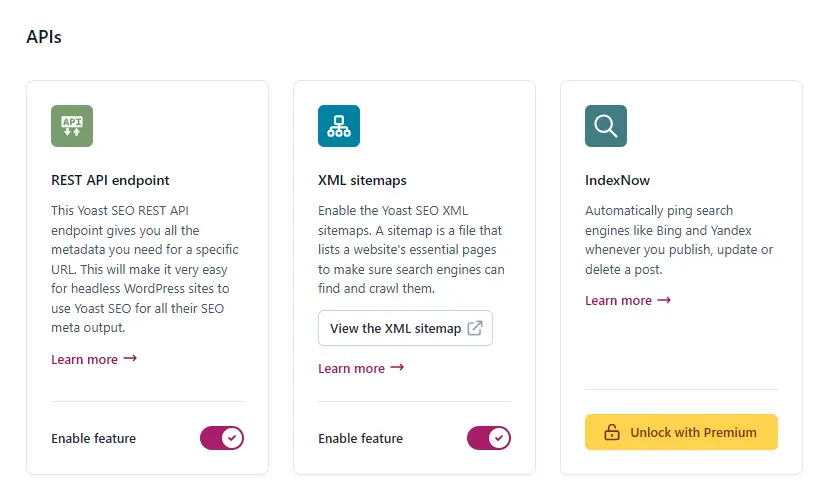
6) Yoast API & Sitemap
The REST API endpoint feature makes Yoast SEO’s metadata available via a REST API. This is especially useful for headless WordPress or advanced setups.
The XML Sitemaps feature automatically generates an XML sitemap for your website, allowing search engines to easily crawl and index your site’s pages and posts.
Keeping this enabled is crucial for SEO. IndexNow (a Premium feature) is also available; you don’t need to enable it separately.
4. Yoasr Recommended Integrations
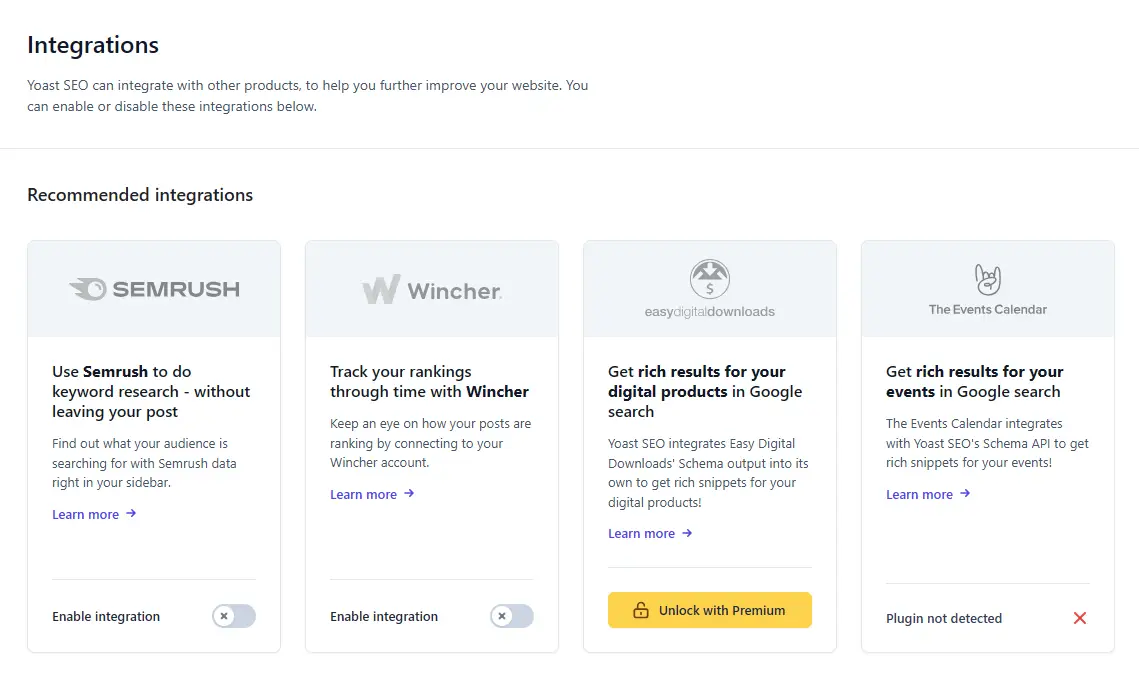
Yoast SEO’s free integrations with tools like SEMrush and Wincher allow you to perform essential SEO activities such as keyword research and ranking tracking directly from your WordPress dashboard.
This helps beginners and bloggers understand and improve their SEO performance without needing extra tools. You can enable both for free.
SEMrush Integration
SEMrush integration allows you to perform keyword research directly within the post editor. It shows you which keywords users are searching for, enabling you to choose the right keywords.
Wincher Integration
Wincher integration lets you track your posts’ keyword rankings over time. By connecting it, you can see how your pages are performing in Google and how their rankings are changing.
5. Yoast Powerful Tools
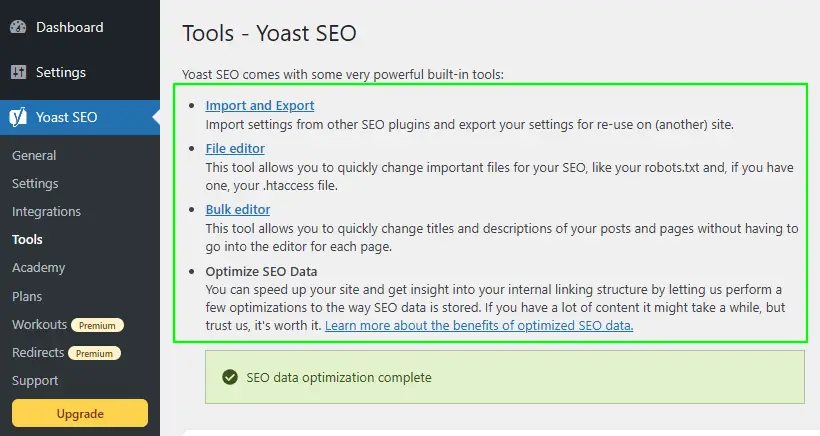
Yoast SEO’s tools offer advanced yet useful features that make SEO management faster, easier, and more efficient, especially when you’re working on large or multi-page websites.
A) Import and Export
This tool allows you to easily import SEO settings from other SEO plugins (such as Rank Math, etc.) into Yoast SEO, or export your existing settings to use on another website.
B) File Editor
The File Editor gives you the ability to edit important SEO files like robots.txt and .htaccess directly from the WordPress dashboard, allowing for better control over crawling and indexing.
C) Bulk Editor
The Bulk Editor lets you edit the SEO titles and meta descriptions of your posts and pages all at once, without having to open each page individually.
D) Optimize SEO Data
The Optimize SEO Data feature optimizes your website’s SEO data, improving site speed and internal linking structure.
6. Yoast SEO Plans
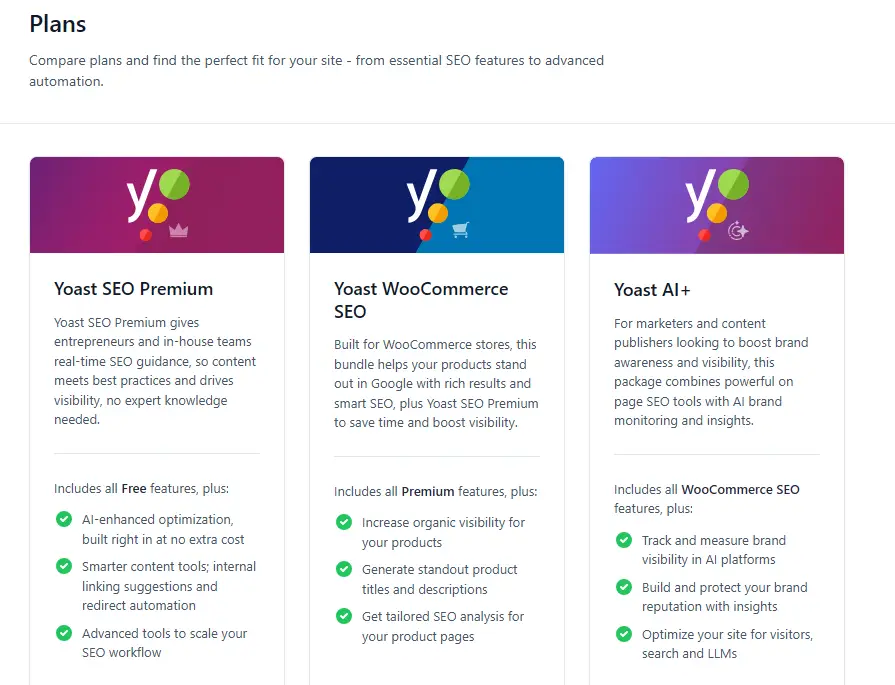
In the Yoast SEO Plans section, you’ll find paid options tailored to different needs.
Yoast SEO Premium is for websites that want advanced SEO features, such as internal linking suggestions, a redirect manager, and extra SEO insights, to help their content rank better.
If your website is an online store, Yoast WooCommerce SEO is specifically designed for WooCommerce sites.
The Yoast AI+ plan is for marketers and content publishers who want to focus on brand visibility and content optimization using AI-powered tools.
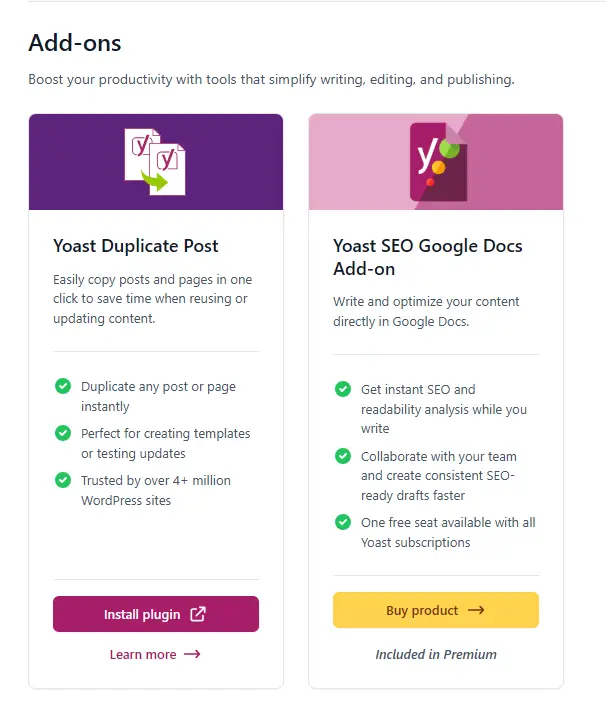
7. Yoast SEO Add-ons
Yoast SEO add-ons are extra tools that make content creation and management easier.
The Yoast Duplicate Post plugin allows you to duplicate any post or page with a single click, which is very useful for creating templates, updating old content, or testing.
The Yoast SEO Google Docs Add-on provides SEO and readability analysis directly within Google Docs.
This allows you to collaborate with your team on writing content and make it SEO-ready even before publishing.
8. Yoast SEO Academy
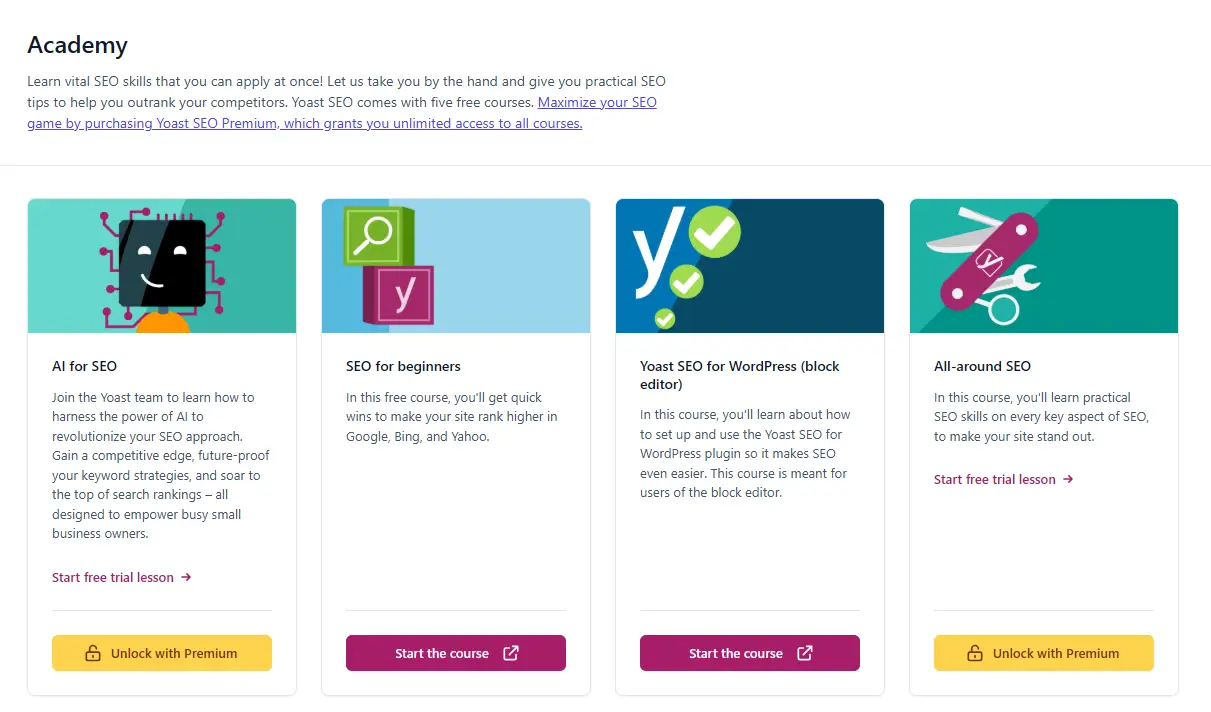
The Yoast SEO Academy section is designed for learning SEO, where you can improve your SEO skills through practical, step-by-step courses.
Here you’ll find free courses like SEO for Beginners and Yoast SEO for WordPress, which teach new users the basics of SEO and how to use the plugin effectively.
In addition, advanced courses such as AI for SEO and All-around SEO are available, which take your keyword strategy, content optimization, and overall SEO knowledge to the next level.
Some courses are free, while full access to all courses is included with Yoast Premium.
Final Words,
Yoast SEO is a powerful and beginner-friendly SEO plugin for WordPress users, making website optimization easy.
With proper installation, configuration, and effective use of its features, you can improve your site’s search visibility, rankings, and overall SEO performance.
Regularly publishing quality content and following Yoast’s suggestions is key to long-term SEO success, also read out this totorials,
- How to Speed Up Your Website in 2026 (10 Optimization Tips)
- WordPress.com vs WordPress.org: Expert Comparison for 2026
If this guide has been helpful to you, please share your feedback in the comments below.
Your suggestions and experiences not only help us create better content, but also provide valuable information and reassurance to new users.
If you have any questions or experiences related to Yoast, please feel free to share them as well.
We’d love to hear from you.




This guide made setting up Yoast so much easier than I expected! I’ve been struggling with the settings for weeks, but your step-by-step instructions and screenshots really cleared things up. Thanks for sharing it!
Thanks a lot, Daniel! Really glad the guide helped make things easier for you. 😊