
If you want to know How to create a duplicate pages in WordPress website that already exist, but you don’t know how to do it, then this post is written especially for you.
In this article, we’ll show you 3 easy ways to duplicate a page or post in WordPress, whether you need to create a similar layout, copy content, or reuse a design elements.
Sometimes you encounter a situation where you want to create a new post or page that is similar (or almost identical) to a post or page that already exists on your site.
If a post or page is very long or contains a lot of media content, copying all that content to another page can be very tedious.
Similarly, if you have many posts that need to be duplicated, creating new posts or pages would require either retyping all the text for each post or using a more efficient method.
We’ll cover multiple methods to duplicate a page in WordPress, including using plugins and manual methods. You can choose as your wish:
Why Duplicate a Page in WordPress?
There are several scenarios where duplicating a page can be helpful:
- Creating a template: Save time by reusing a pre-designed page layout.
- Testing changes: Make edits without affecting the live version.
- Content revisions: Keep a backup before making major updates.
- Split testing: Test different versions of a page for better performance.
Top 3 Ways to Duplicate a Page In WordPress in 2026
To duplicate a page in WordPress you need to have basic knowledge of WordPress and copy paste like press Ctrl+C to copy and Ctrl+V to paste in your keyword.
Here are 3 easy ways to duplicate page in WordPress:
Method 1: Using a WordPress Plugin
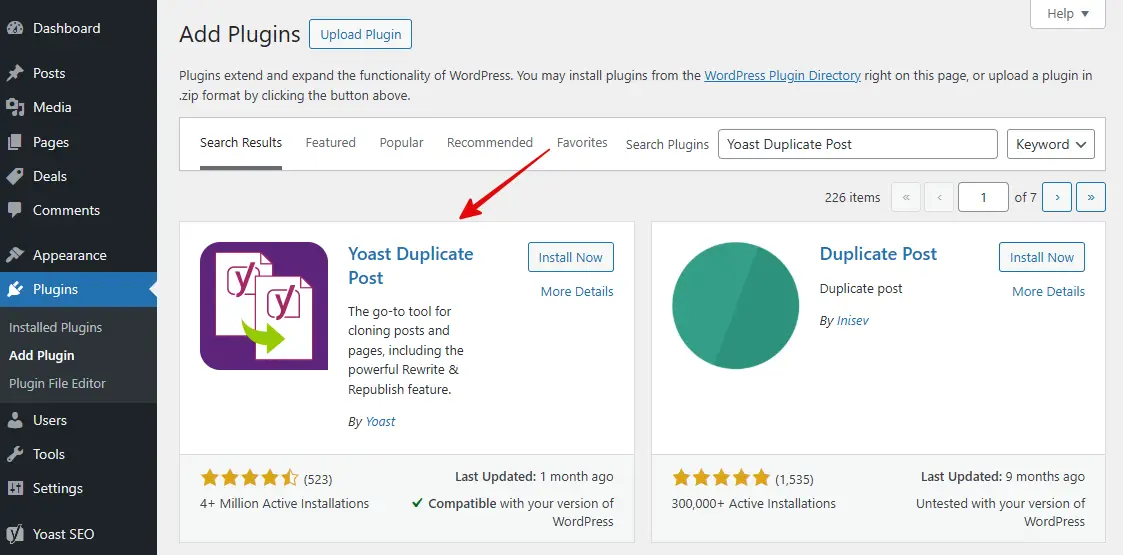
The easiest way to duplicate a page in WordPress is by using a plugin. Some of the most popular duplication plugins include:
This plugin allows you to clone any type of post or page, or copy them into new drafts for further editing.
It also includes a template tag, so you can insert it into your templates and clone your posts/pages directly from the front-end. Clicking the link will take you to the edit page of the new draft.
Duplicate Post has several useful settings to customize its behavior and restrict its use to specific roles or post types.
How to Duplicate a Page in WordPress with Plugin (Recommended)
- Go to Plugins > Add New in your WordPress dashboard.
- Search for Yoast Duplicate Post and install the plugin.
- Activate the plugin.
First, go to Pages > All Pages. Now, hover your mouse over the page you want to copy. You will see options like Clone and New Draft.
Clicking on Clone will create a copy of the page, while clicking on New Draft will duplicate the page and open it directly in the editor.
Afterward, make any necessary changes to the content or design, and when everything looks good, publish the page.
Method 2: Manually Duplicating a Page
If you prefer not to use a plugin, you can duplicate a page manually by copying the content and pasting it into a new page, this method doesn’t copy custom fields or metadata.
Steps to Manually Duplicate a Page:
- Go to Pages > All Pages in the WordPress dashboard.
- Open the page you want to duplicate in the editor.
- Copy all the content (text, images, shortcodes, etc.).
- Go to Pages > Add New.
- Paste the copied content into the new page.
- Adjust the title, URL, and other settings as needed.
- Publish or save as a draft.
This method best for you, if you want to duplicate a page or post in WordPress without plugin.
Method 3: Duplicating a Page via Custom Code
For advanced users, adding custom code to the functions.php file can enable duplication functionality without plugins.
Follow below steps.
- Open your theme’s functions.php file (via Appearance > Theme Editor or FTP).
- Add the following code snippet.
- After that, Save the changes.
- Now, you’ll see a Duplicate option
- when you hover over a page in the WordPress dashboard.
function mozedia_duplicate_post_as_draft(){
    global $wpdb;
    if (!isset($_GET['post']) || !is_numeric($_GET['post'])) return;

    $post_id = absint($_GET['post']);
    $post = get_post($post_id);

    if ($post) {
        $new_post = array(
            'post_title'   => $post->post_title . ' (Copy)',
            'post_content' => $post->post_content,
            'post_status'  => 'draft',
            'post_author'  => $post->post_author,
            'post_type'    => $post->post_type
        );

        $new_post_id = wp_insert_post($new_post);
        wp_redirect(admin_url('edit.php?post_type=' . $post->post_type));
        exit;
    }
}
add_action('admin_action_duplicate_post_as_draft', 'mozedia_duplicate_post_as_draft');
Final Thoughts,
Duplicating a page in WordPress is a simple process, whether you use a plugin, manually copy content, or implement custom code.
- For beginners, plugins like Yoast Duplicate Post or Duplicate Page offer an easy way to duplicate pages with a single click.
- For developers, custom code provides a lightweight solution without additional plugins.
Choose the method that best suits your needs and streamline your WordPress workflow efficiently.
If you find this post helpful, share it with your friends.




This is just what I needed, thanks for sharing.
Your welcome.