If you no longer wish to continue your ChatGPT subscription plan, such as Go, Free Plus, Pro, or Enterprise, you can cancel your subscription at any time. In this guide, you’ll learn how to cancel your ChatGPT subscription on iPhone, web, and Android, as well as how to turn off auto-renewal, check your billing history, request a refund, and much more.
If you’re using OpenAI ChatGPT for the first time or are new to it, you might find canceling your plan a little difficult, but don’t worry.
Because, with the step-by-step guide below, you can easily cancel your ChatGPT subscription.
Before You Cancel: Important Things to Know
- Your ChatGPT subscription automatically renews every month unless you cancel it.
- After cancellation, your plan will remain active until the end of the current billing cycle.
- Refunds are only available in limited cases (explained below).
- If you subscribed via iPhone/Android, you must cancel through the App Store/Google Play.
How do I Cancel My ChatGPT Subscription in Web Browser (Window, iPhone, Android)
To cancel a ChatGPT subscription follow below steps carefully.
- First go to the ChatGPT website and login,
- click your profile icon > Settings > Account,
- and select Manage or Cancel subscription,
- to find and cancel the active subscription directly,
- ensuring you do it before the next billing cycle.
Let’s we explain this step by step with screenshots for different devices.
Step 1: Login to ChatGPT
First go to the ChatGPT website and login.
Step 2: Go to “Settings” in the left-side menu.
On the desktop version, you’ll find Settings in the bottom-left corner.
- click your profile icon > Settings > Account.
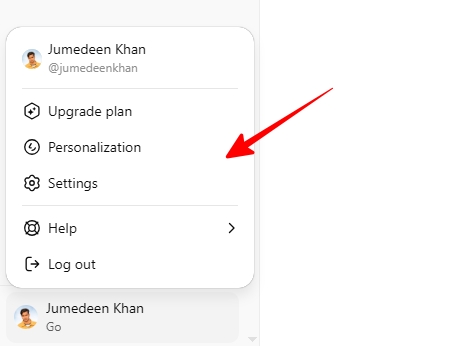
Step 3: Open “Manage My Subscription” View plans.
- click on Account → Cancel Subscription to cancel it.

This is how you can cancel your ChatGPT subscription in a web browser, regardless of whether you’re using a Windows PC, mobile phone, iPhone, or any other device.
If you subscribed on a mobile device through the App Store or Play Store, you will need to cancel it accordingly through iOS or Android.
How do I Cancel My ChatGPT Subscription on iPhone App? (Apple App Store)
If you subscribed to ChatGPT through the Apple App Store, your subscription is handled directly by Apple — not OpenAI.
This means you must cancel it from your iPhone’s subscription settings, not from the Chat GPT website.
Follow these steps to cancel your ChatGPT subscription through Apple:
- Open the Settings app on your iPhone.
- Tap your Apple ID name at the top.
- Select Subscriptions.
- From the list of active subscriptions, tap ChatGPT.
- Tap Cancel Subscription.
- Confirm your cancellation in the pop-up message.
Important Notes
- Deleting your ChatGPT account online will NOT cancel your subscription. You must cancel through the App Store.
- Apple charges your account 24 hours before the next billing cycle starts.
- After canceling, your premium features will remain active until the current paid period ends.
For Apple’s official guide on canceling subscriptions, refer to Apple’s support article.
How to Cancel Your ChatGPT Subscription on Android App (Google Play)
If you subscribed to ChatGPT through the Google Play Store, your billing is managed by Google. This means you must cancel your subscription through Google Play, not by uninstalling the ChatGPT app or using chat gpt website.
Important Points
- Uninstalling the Android app does NOT cancel your subscription.
- Subscriptions bought via Google Play can be cancelled from the Google Play Store app or website (using the same Google account you used at purchase).
1. Cancel Through the Google Play Store App
- Open the Google Play Store on your Android device.
- Make sure you’re signed in with the same Google account used for your ChatGPT subscription.
- Tap Menu → Subscriptions.
- Select ChatGPT from the list.
- Tap Cancel Subscription.
- Follow the on-screen instructions to confirm.
2. Cancel Through the Google Play Website
- On your computer, open the Google Play Subscriptions page.
- Find ChatGPT and click Manage.
- Click Cancel Subscription.
- Choose a reason and click Continue to confirm.
3. Billing & Cancellation Info
- Google Play charges your account 24 hours before the next billing cycle.
- After canceling, your premium features remain active until the current paid period ends.
- For full instructions, see Google’s official guide on managing subscriptions.
ChatGPT Refund Policy (Updated 2026)
To request a refund for a Google Play purchase, visit Google’s refund page.
OpenAI usually does not offer refunds, but they may be granted in special cases:
Chances of receiving a refund:
- Accidental purchase
- Cancellation immediately after same-day auto-renewal
- Unable to use due to a technical issue
- Duplicate billing
Refunds will not be given:
- Cancellation after 15–20 days of use
- Cancellation due to “I don’t need it” after normal usage
How to apply for a refund?
ChatGPT help page → Billing Issues → Contact Support Or via support[at]openai.com
If you need more help, open the OpenAI’s Help Center and use the chat widget in the bottom-right corner to contact support.
If You Don’t See the Cancel Button
There could be 3 reasons for this:
- The subscription is through the App Store/Play Store → the cancel button won’t be visible on the website.
- You are using multiple accounts.
- Payment is due → please clear the payment first, then the cancel option will appear.
Conclusion
Canceling your ChatGPT subscription is simple, you just need to know how you purchased the plan — via the web, iPhone, or Android.
By following the steps above, you can cancel it in 2 minutes.